
Quick Answer
Google Consent Mode version 2 (v2) is required for any site running Google Ads, Analytics, or Floodlight pixels that receives traffic from the European Economic Area (EEA) or the United Kingdom (UK). It adds two parameters, ad_user_data and ad_personalization, that govern how Google uses personal data for advertising. Without v2, accounts targeting EEA or UK users lose up to 60% of conversion data and access to remarketing features. This checklist covers pre-implementation setup, Google Tag Manager (GTM) configuration, testing, and troubleshooting for Business-to-Business (B2B) Software-as-a-Service (SaaS) marketing teams.
TL;DR
• Enforcement is active. Accounts without v2 can lose conversion visibility for EEA and UK traffic.
• Four consent signals required. ad_storage, analytics_storage, ad_user_data, and ad_personalization must all be configured before any tag fires.
• Advanced Mode recovers data. Basic Mode loses all data from non-consenting users. Advanced Mode enables conversion modeling that recovers 65% to 70% of that data.
• Consent Initialization trigger must fire first. Any tag that fires before defaults are set risks sending data without consent.
• Use a Google-certified CMP. Cookiebot and Secure Privacy integrate with GTM out of the box and map all four signals automatically.
• Test both user paths. Verify accept and reject flows separately before publishing.
• June 15, 2026 brings a second change. Google Signals no longer governs advertising data in linked GA4 accounts. Ad_storage becomes the sole governing parameter.
Google enforced v2 compliance starting July 21, 2025. Accounts that did not implement it lost conversion tracking, remarketing, and personalized ad functionality for EEA and UK traffic. Data loss is likely if the setup has not been verified.
The checklist covers what to configure, in what order, and how to verify it is working.
What Changed in Google Consent Mode v2
Google Consent Mode v2 expands consent signal coverage from cookie storage to data usage, adding two new parameters required under the Digital Markets Act (DMA). Enforcement began in March 2024 and account suspension for non-compliance started July 21, 2025.
How Does Google Consent Mode v2 Differ from V1?
Version 1 managed cookie storage with two signals. Version 2 adds two parameters that control how Google uses data within its advertising network, not just whether cookies are stored.
• ad_user_data. Controls whether personal data is sent to Google for advertising purposes.
• ad_personalization. Controls consent for personalized ads and remarketing.
• analytics_storage. Controls whether analytics cookies can write to the browser.
• ad_storage. Controls advertising cookie behavior. Becomes the sole ad data governor from June 15, 2026.
A user can accept analytics cookies and reject personalized advertising. v1 could not handle that distinction. v2 does, and the DMA requires it.
What Happens to Conversion Data Without v2?
Accounts without v2 lose up to 60% of measurement data when users deny consent. Remarketing lists break. Performance Max audience signals run on incomplete data.
Conversion modeling in Advanced Mode recovers 65% to 70% of that data, but only at 700+ ad clicks over seven days per country and domain. At a $2.50 cost-per-click (CPC), that is roughly $7,500 monthly spend to qualify.
A case documented in April 2026 shows a Google Ads account that lost 90% of measured conversions overnight due to a misconfigured consent banner. The banner collected user preferences but did not transmit signals to Google’s tag infrastructure. After remediation, 40% of attribution data was recovered through modeling. The remainder could not be recovered through modeling.
“Advanced consent mode allows Google tags to adjust the data they collect based on user consent preferences. This means that if a user has not yet granted consent, basic information will still be sent to Google Analytics.” Loves Data, Google Analytics Training & Resources
What Are the Current Compliance Deadlines?
Google made v2 mandatory in March 2024 for all EEA accounts. July 21, 2025 was the enforcement date: non-compliant accounts lost access to personalized advertising, remarketing, and conversion tracking. DMA fines start at 10% of global revenue and reach 20% for repeat violations.
June 15, 2026 brings a second change. Google Signals no longer governs advertising data in linked GA4 and Google Ads accounts. After that date, ad_storage becomes the sole governing parameter. If your consent setup does not explicitly control ad_storage, your linked accounts will be affected.
Pre-Implementation Checklist
Before touching GTM, document your current tag setup, choose your consent mode implementation, select a certified CMP, and confirm access. Skipping this step is the most common cause of race conditions and missing signals.
1. Audit Your Current Google Tags
Log into GTM and document every deployed tag. Tags requiring consent checks: Google Analytics (GA4), Google Ads conversion tracking, Floodlight pixels, and the Conversion Linker. Each has built-in consent support and adjusts behavior based on consent state. Tags without built-in support need manual configuration through GTM’s Advanced Consent Settings.
Write down your GA4 measurement IDs, Google Ads conversion IDs, and all remarketing tags. You will reference this list during configuration.
2. Choose Between Basic and Advanced Mode
Basic Mode blocks all Google tags until a user interacts with the consent banner. Zero data from users who deny or ignore it.
Advanced Mode loads tags immediately with default consent set to “denied,” then updates based on user choice. It enables conversion modeling and recovers data Basic Mode loses permanently.
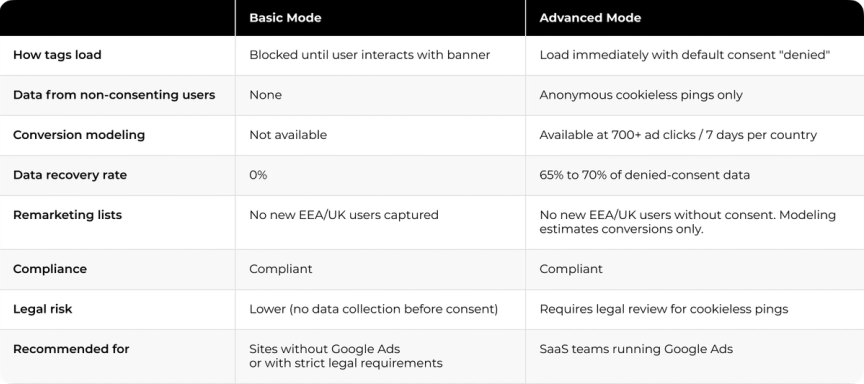
For SaaS teams running Google Ads, Advanced Mode supports conversion modeling and partial data recovery.
3. Select a Compatible CMP Platform
Use a Google-certified CMP. Cookiebot and Secure Privacy integrate directly with GTM. ConsentManager and TrustArc also support v2. Confirm your platform maps to all four signals: ad_storage, ad_user_data, ad_personalization, analytics_storage.
4. Document Regional Requirements
EEA, UK, and Switzerland require 'denied' by default. California, Colorado, and Virginia each have specific consent rules. Document which regions your site serves before writing any consent defaults.
5. Gather GTM Access and Permissions
You need Edit and Publish permissions. Confirm at least two people hold Admin access before starting configuration.
GTM Configuration Steps
Complete these six steps in order. Each step depends on the previous one being in place.
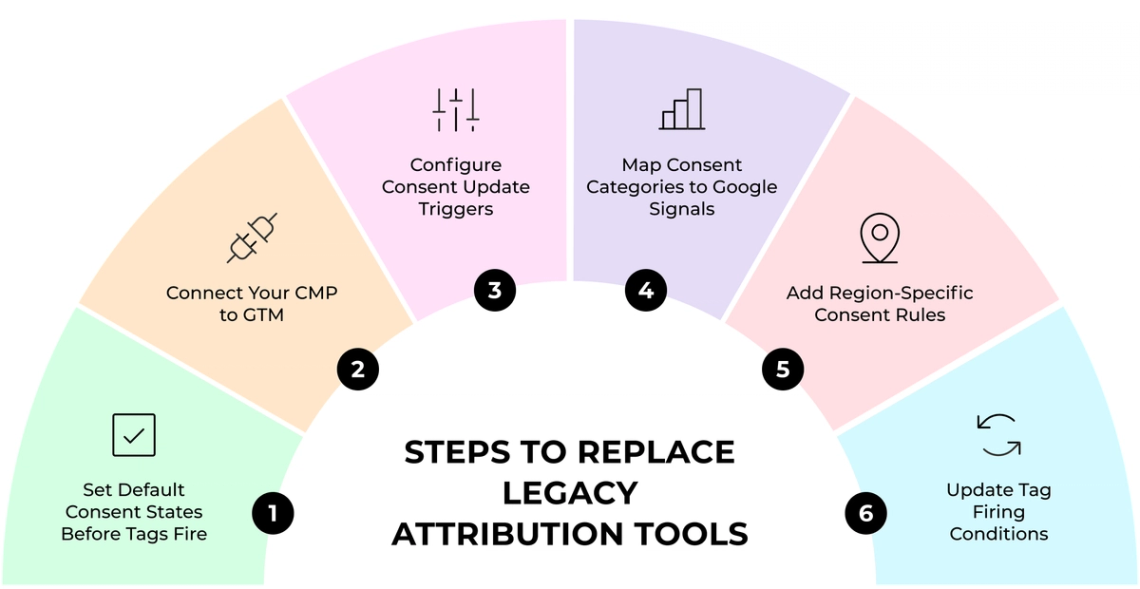
1. Set Default Consent States Before Tags Fire
Create a tag with type “Consent Initialization” and assign it the Consent Initialization - All Pages trigger. Set all four consent types to “denied”: ad_storage, analytics_storage, ad_user_data, ad_personalization. Any tag that fires before this step risks sending data without consent. If Tag Assistant shows “a tag read consent before a default was set,” this is a race condition that must be fixed before going live.
2. Connect Your CMP to GTM
Most CMPs provide a GTM template in the Community Template Gallery. Install it and configure it to trigger on Consent Initialization - All Pages. The CMP writes consent choices to browser storage and pushes an event to the dataLayer that triggers the consent update. Confirm your CMP supports dynamic updates, not just initial defaults.
3. Configure Consent Update Triggers
Cookiebot uses cookie_consent_update. UniConsent pushes unic_data. Create a Custom Event trigger and set it to fire on All Custom Events. This trigger handles the moment users accept, reject, or customize their preferences.
4. Map Consent Categories to Google Signals
Marketing cookies map to ad_storage and ad_user_data. Analytics cookies map to analytics_storage. Personalization preferences map to ad_personalization. Configure the mapping in your CMP admin panel before touching GTM.
5. Add Region-Specific Consent Rules
Region-specific defaults use ISO 3166-2 codes. Spain is 'ES', California is 'US-CA'. The most specific rule matches first. A global default without a region applies to everyone not covered by a specific rule.
6. Update Tag Firing Conditions
Open each Google tag and go to Advanced Settings > Consent Settings. Advertising tags require ad_storage. Analytics tags require analytics_storage. Replace the All Pages trigger with your consent update trigger. For tags set to “Once per page” with Additional Consent Checks: use trigger logic instead. When consent is denied and then granted, GTM registers the first attempt and the tag will not re-fire. This is a documented GTM behavior that affects many Advanced Mode setups.
“The 'default' command should be set to fire on the Consent Initialization trigger so that the default state is established before any other tags fire.” Simo Ahava, Partner & Co-founder, Simmer
How to Verify Google Consent Mode v2 Is Working
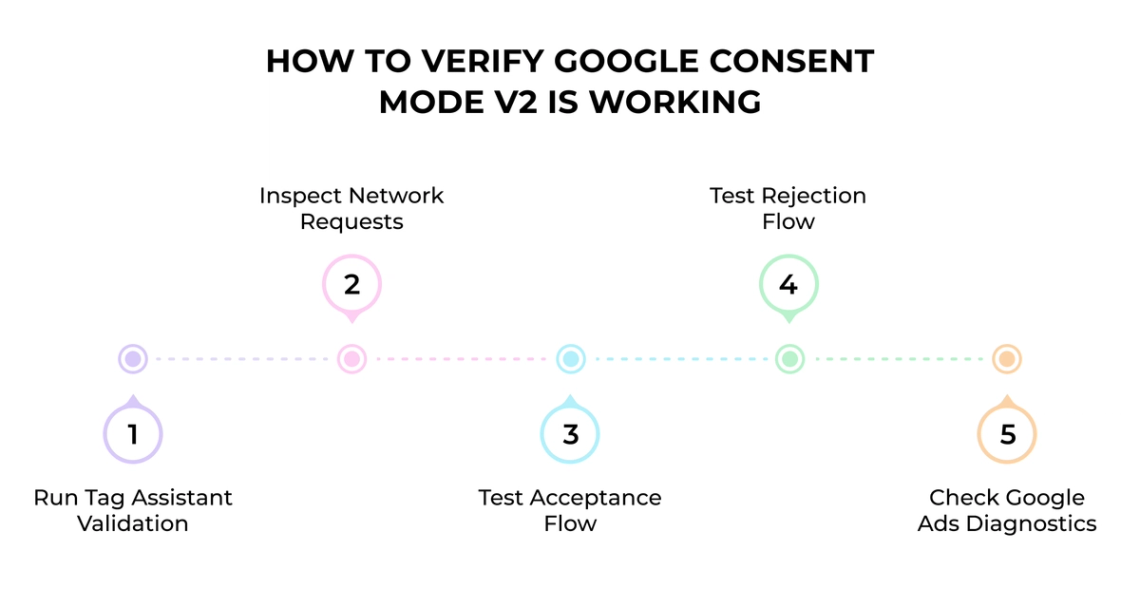
After publishing your consent configuration, verify it against both accept and reject paths before treating the setup as complete.
Run Tag Assistant Validation
Open tagassistant.google.com and enter your site URL. Find the earliest Consent event in the Summary sidebar. All four parameters should appear in the API Call section. Check the Consent tab and verify On-page Default shows Denied.
Inspect Network Requests
Open Developer Tools (F12) > Network > filter for “collect.” Look for the gcs parameter. G100 = consent denied. G111 = all consent granted. The gcd parameter covers all four signals and appears in every hit.
Test Acceptance Flow
Clear browser cookies. Reload without touching the banner. A collect request fires with no cookies created. Accept all cookies. The gcs parameter updates from G100 to G111.
Test Rejection Flow
Reject all non-essential cookies. The gcs value stays at G100. No advertising or analytics cookies appear in browser storage.
Check Google Ads Diagnostics
Navigate to Goals > Conversions > Summary. Select a conversion action and open Diagnostics. Three statuses: implemented, implemented but below modeling thresholds, or implemented with active modeling. Allow up to 48 hours to update.
Why Is Consent Mode Not Working? Common Setup Issues
The four issues below account for the majority of failed consent mode implementations. Check them in order before escalating to a developer.
Consent States Show as Not Set
Your CMP likely lacks native v2 support. Check Google's certified CMP list before assuming integration is automatic. Exception triggers set up before consent mode existed also block consent mode from loading. Remove exception triggers for Google tags.
Tags Fire Before Consent Loads
The CMP loads asynchronously and does not finish before Google tags fire. For tags set to “Once per page” with Additional Consent Checks: use trigger logic instead. When consent is denied and then granted, GTM registers one attempt and the tag will not re-fire. This is covered in the Bounteous consent mode mistakes guide.
Consent Not Persisting Across Pages
The CMP is not writing preferences to browser storage correctly. Check cookie expiration settings in the CMP admin panel.
Missing V2 Parameters in Requests
If the gcd parameter is absent from collect requests, the implementation may still be running as v1. Reinstall the consent implementation following the v2 steps above.
How Darwin Supports Consent Mode v2 Implementation
What often gets missed is how much measurement quality depends on the consent layer being configured correctly. Tags fire, dashboards show numbers, campaigns run, but up to 60% of conversion data can drop silently when consent signals are not set up in the right order.
Darwin works with B2B SaaS teams to build compliant GTM consent architectures. The work covers consent initialization sequencing, CMP integration tested against both accept and reject paths, and regional rules applied per jurisdiction.
Our work includes:
• Security & Compliance. Consent mode configuration, CMP integration, and GTM audit against v2 requirements.
• Data & Analytics Setup. GA4 and Google Ads tag configuration aligned with consent state management.
• Integrations & Automations. Connecting consent signals to your full tag infrastructure without breaking existing tracking.
FAQs
Q1. What is the main difference between Google Consent Mode v1 and v2?
Version 1 controlled cookie storage with two signals: analytics_storage and ad_storage. Version 2 adds ad_user_data and ad_personalization, which govern how Google uses your data within its advertising network. The Digital Markets Act requires this level of granularity for all EEA and UK traffic.
Q2. Will I lose conversion data if users don't consent to tracking?
Yes. Accounts without v2 can lose up to 60% of measurement data when users deny consent. Advanced Mode recovers 65% to 70% of that through conversion modeling, but only at 700+ ad clicks over seven days per country and domain.
Q3. What happens if I missed the Consent Mode v2 compliance deadline?
Google enforced account suspension starting July 21, 2025. Non-compliant accounts lost access to personalized advertising, remarketing, and conversion tracking for EEA and UK traffic. If you have not verified your setup, run Tag Assistant and check Google Ads Diagnostics now.
Q4. Should I choose Basic or Advanced consent mode for my implementation?
Use Advanced Mode if you run Google Ads. Basic Mode blocks all tags until consent is granted, which means zero data from users who deny or ignore the banner. Advanced Mode loads tags with default consent set to "denied," updates on user choice, and enables conversion modeling that recovers data Basic Mode loses permanently.
Q5. How can I verify that Consent Mode v2 is working correctly?
Open Tag Assistant and confirm all four parameters appear in the earliest Consent event. In Developer Tools, filter network requests for "collect" and look for gcs and gcd. A gcs value of G100 means consent is denied. G111 means all consent is granted. Test both accept and reject flows before publishing.