
Quick Answer
To fix cross-domain tracking in GA4, serve the same Google tag and measurement ID from one web data stream on every domain, then list all domains under Admin > Data Streams > Configure your domains. That combination lets GA4 carry the _gl parameter and keep one client ID across domains. When your tags run through Google Tag Manager, a Conversion Linker tag may support some GTM implementations, though it is not what makes cross-domain measurement work on its own. Confirm the fix by checking that the ga_session_id stays identical as a user moves from one domain to the next in DebugView, and treat it as ongoing maintenance, since redesigns, migrations and vendor changes quietly reintroduce breaks over time.
TL;DR
- First-party cookies cannot travel between separate domains, so GA4 splits one journey into two sessions and logs your own site as a referral.
- Self-referrals in your Traffic acquisition report and inflated user counts are two common indicators worth checking first when tracking looks off.
- The main fix is the same Google tag and measurement ID on every domain plus all domains listed in GA4 settings; a Conversion Linker tag may support some GTM implementations but is not a requirement on its own.
- With cross-domain measurement configured correctly, the _gl parameter carries through link clicks and through forms; the edge case is a third-party form host, iframe or redirect that drops the parameter.
- Verify with DebugView and the _gl parameter, then re-test quarterly and after every site change.
Your own website showing up as a referral source in GA4 is a common indicator that cross-domain tracking has broken, and it is worth checking early. GA4 tracks users with first-party cookies by default. When visitors move from domain A to domain B, GA4 cannot reach those cookies, and the session splits in two.
This break, called a self-referral, distorts your marketing data in ways that reach straight into reliable GA4 and CRM attribution. Demo signups look like fresh sessions. Trial conversions get credited to the wrong source, and the campaign that earned them disappears from the report. This guide shows you how to set up cross-domain tracking in GA4, diagnose it when tracking stops working, and configure it in Google Tag Manager the right way, with a focus on the demo, trial and partner journeys that drive B2B pipeline.
Why a Broken Journey Costs You More Than Clean Data
A journey that snaps at a domain boundary does not just dirty a report. It hides which campaigns produce pipeline, so budget decisions get made on numbers that were never real. Fixing this comes down to keeping one continuous view of the user from first touch to closed deal, which is exactly the problem Darwin built its measurement approach around.
Four ideas keep that view intact. Surface captures the full journey, Connections hold it together as the user crosses domains and systems, and Clarity makes the resulting attribution defensible when finance needs to reconcile CRM, ad-platform and finance revenue numbers. Momentum keeps someone re-testing after each redesign or vendor change. Together these pillars are what Darwin Flux is built on, and cross-domain tracking is where they hold or fall apart.
Why Cross-Domain Tracking Breaks for Demo, Trial, and Partner Sites
Cross-domain tracking breaks because first-party cookies cannot travel between separate domains, and the demo, trial and partner flows common in B2B SaaS cross those boundaries constantly. Each break point has its own signature, and knowing them tells you where to look first.
The Cookie Problem Between Separate Domains
GA4 identifies visitors using a client ID stored in a first-party cookie, and that cookie is scoped to a single domain. Your main site at example.com cannot read a cookie set by shop.example.net. When someone crosses from one to the other, GA4 sees a brand-new visitor with no history.
The distinction between subdomains and separate root domains matters here. For www.example.com and app.example.com, a correctly scoped cookie domain often keeps the session intact on its own, since both share the example.com root. Cross-domain measurement earns its keep when a user moves between different root domains, such as example.com and example-app.io, where no shared cookie can follow them.
This limitation splits one journey into two sessions, inflating your session count and breaking funnel continuity. It is one of the common GA4 tracking errors worth ruling out early. The more of your traffic crosses domains, the more your user and session counts drift from reality. Cross-domain tracking addresses this by using the _gl parameter to carry cookie values between domains, so the same client ID follows the user. With that parameter missing, every domain hop registers as a new person in your reports.
How Self-Referrals Hide Your Real Traffic Sources
Self-referrals hide your real sources because the original source belongs to the first session, and the second domain starts a fresh one. Once the session breaks, the conversion gets credited to a referral from your own first domain. The Google ad or email campaign that truly drove the visit disappears from the attribution chain, which is one reason session continuity underpins any marketing measurement strategy you can trust.
These self-referrals surface in your acquisition reports, which is a useful indicator to check. When your checkout runs on a separate domain and cross-domain tracking in Google Tag Manager is not configured, paid campaigns look far weaker than they are, and direct traffic starts converting at implausibly high rates. The quick test is simple: open your Traffic acquisition report and look for referrals from your own domains. Your domain appearing there is a strong hint that the journey broke somewhere.
When Demo and Trial Flows Create New Sessions
Demo and trial flows break most often when the measurement setup itself is inconsistent, not because a form was involved. When cross-domain measurement is configured correctly, GA4 carries the _gl parameter through link clicks and through form submissions that redirect a user to another domain. The break appears when the two domains report to different measurement IDs, because GA4 then opens a fresh session on each domain and misattributes it.
Both domains have to send data to the same Google tag and measurement ID from the same web data stream for the journey to stay unified. Edge cases still exist, such as a form that posts to a third-party host or an iFrame that does not forward the linker parameter. When a vendor-hosted form or iframe drops _gl, confirm the vendor's supported tracking options with a developer, and do not pass analytics identifiers in custom URL parameters without a documented implementation.
Partner and Payment Gateway Journey Breaks
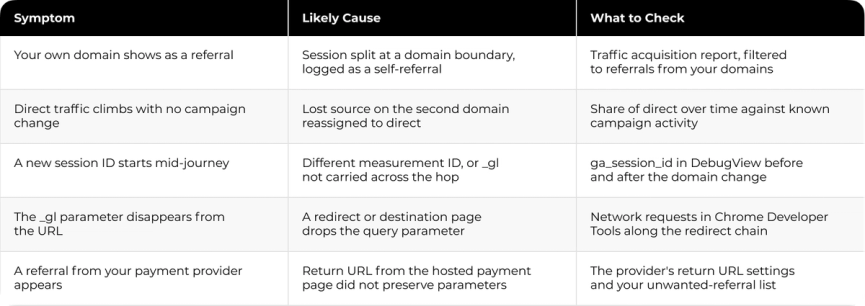
Payment processors are a frequent failure point because visitors leave for a hosted payment page and then return. The return trip carries the risk, since you depend on the payment provider's return URL to preserve your parameters. When the return URL does not preserve them, the _gl parameter is lost and the returning visitor becomes a new session with a payment-provider referral.
Redirects strip the _gl parameter in many cases. When the destination page redirects or refuses arbitrary query parameters, _gl can be dropped from the URL, usually too fast to catch by eye. Privacy settings and redirect rules can also affect whether the parameter survives, and the exact behavior depends on the browser and extensions in play, so treat measurement as something to verify each time and never take on faith.
How to Diagnose GA4 Cross-Domain Tracking Issues
Diagnosing broken cross-domain tracking means reading your data from several angles, because the symptoms surface in different reports and no single metric tells the full story. Work through the checks below in order to find the break point, or have Darwin audit your measurement trust end to end.
The table below maps the symptoms you are likely to see to their probable cause and the fastest place to confirm each one.
Check for Self-Referrals in Your Traffic Reports
Your Traffic acquisition report holds the first clue. Go to Reports, then Acquisition, then Traffic acquisition, and scan the referral sources. Your own domain listed there is a common indicator worth checking. When a user moves from domain A to B and tracking fails, GA4 records the move as a self-referral and skews your acquisition data.
Pull up the report and filter by referral traffic. Your brand name should not appear as a source driving conversions on your own properties. When shop.yourbrand.com shows up as traffic referring into yourbrand.com, the tracking broke somewhere along that journey.
Look for Inflated User Counts Across Domains
Inflated user counts are the second signal. When cross-domain tracking in Google Tag Manager is not working, GA4 creates new cookies on domain B because it cannot reach the cookies from domain A. The result is too many users in your reports, since every person who visits both domains turns into two.
Compare your user counts against session counts. When cross-domain tracking fails, session data often splits, which inflates both New User and Session totals. Watch your audience metrics over time. A sudden spike in new users with no matching rise in traffic usually points to a tracking break.
Verify the _gl Parameter in Your URLs
Manual URL inspection catches most issues fast. Open a page that links to your second domain, click that link, and watch the address bar on the destination page. You should see the linker parameter _gl followed by a string of characters.
No _gl parameter visible? Use Chrome Developer Tools to examine the network requests made by the previous page, which shows how the parameter was handled. Redirects can strip it before you spot it visually. The Redirect Path extension identifies redirect chains that kill tracking. Install it, click your cross-domain link, then check the extension. When _gl was present initially and then vanished, you have found your break point.
Use DebugView to Track Cross-Domain Events
DebugView shows what is happening under the hood in real detail, as long as debug mode is switched on for your session. Enable it through Google Tag Assistant, or the GA Debugger extension, or a debug_mode parameter on your tag, then open Admin, then DebugView in your GA4 property. Relying on the extension alone can leave you looking at an empty view when debug mode never engaged.
Visit your primary domain and page_view events appear. Click into an event and examine these parameters:
- ga_session_id: note this number.
- page_location: should show your current domain.
Now click a link to your second domain and find the new page_view event in DebugView. The ga_session_id has to match the previous one, and page_location should now show your second domain. A matching session ID across both domains means your setup is working. Different IDs mean cross-domain tracking is not working.
Test the Full Journey from Start to Conversion
Testing the full journey confirms the fix end to end. Start on domain A using custom UTM parameters to mark your test traffic. Click through to domain B, then to any third domains in your flow, and check that each step holds the same session in your reports.
Wait for the data to populate standard reports, since Realtime reports will not show session-scoped dimensions correctly. Apply a segment to isolate your test campaign traffic. You should find a single session spanning every domain.
Fix Cross-Domain Tracking in GA4 Step by Step
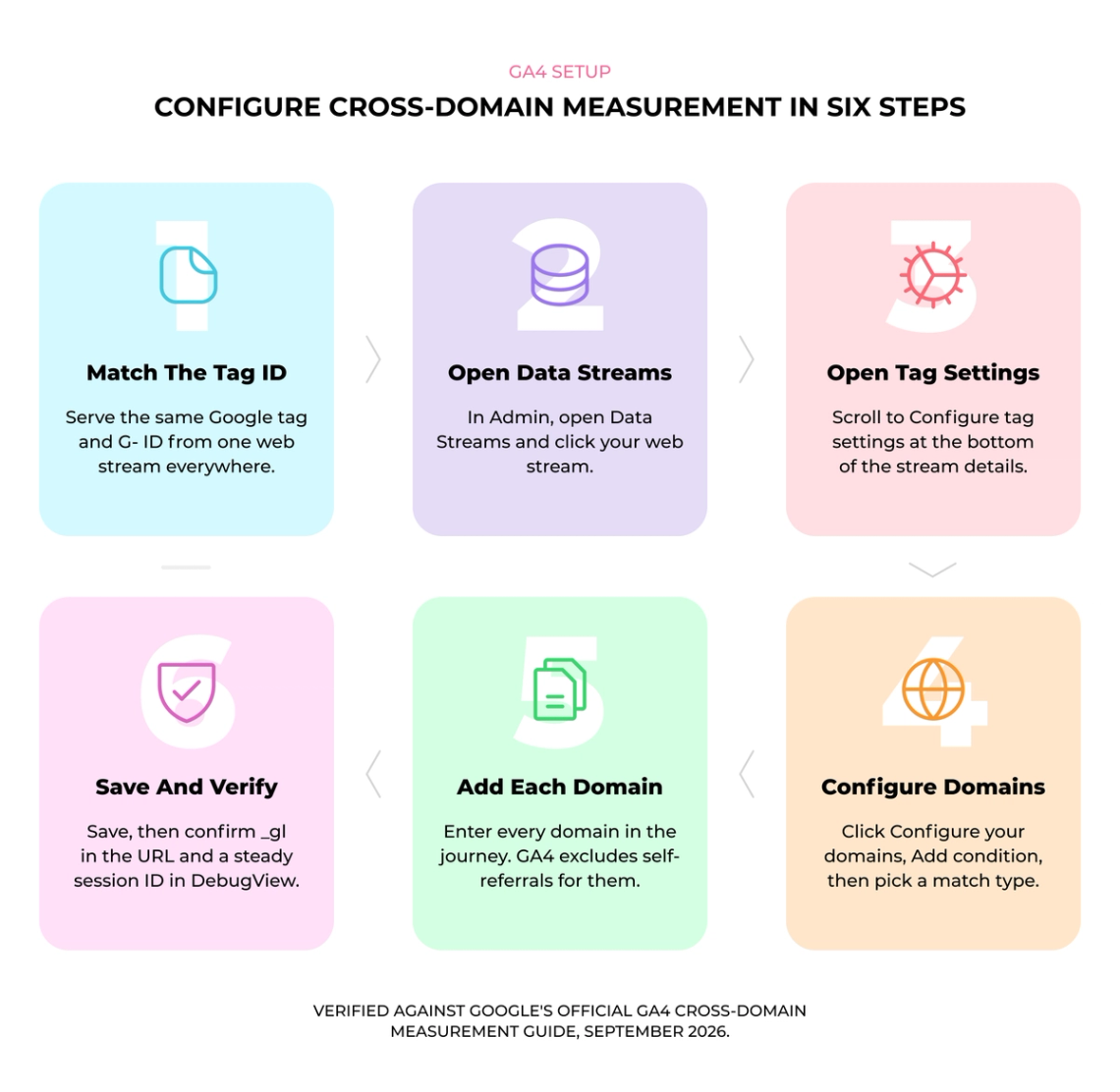
Fixing cross-domain tracking in GA4 follows a clear sequence once you know it, and the first rule anchors everything else: every domain has to serve the same Google tag and measurement ID from the same web data stream. A single session cannot hold together when domains report to different streams, which makes this foundational to any Data and Analytics setup that has to report reliably.
1. Verify Every Domain Uses the Same Measurement ID
Confirm that your tracking code serves the same Google tag and measurement ID from the same web data stream on every domain. In GA4, open Admin, then Data Streams, and note your measurement ID. Visit each domain and inspect the GA4 tag in the page source. The tag ID has to match exactly on all sites.
If separate properties need to remain in place, you can use an additional GA4 property that receives data from both domains for unified cross-domain reporting, and your existing setups keep running untouched.
2. Configure Your Domains in GA4 Settings
Open Admin, then Data Streams, and click your web stream. Scroll to Configure tag settings at the bottom, then click Configure your domains. Click Add condition, choose a match type, and enter your domain identifier such as example.com in the Domain field.
Add each domain you want to include. GA4 handles self-referrals automatically for the domains you list. Save your changes.
3. Add a Conversion Linker Tag When You Use Google Tag Manager
A Conversion Linker tag may support some GTM implementations, and it works alongside the shared tag and domain configuration, and it does not replace them. When you use one, create the tag, select Enable linking across domains, then enter all domains in the Auto Link Domains field. Any link pointing to a listed domain then gets the _gl parameter appended automatically.
4. Check Forms and Vendor-Hosted Pages
With cross-domain measurement configured correctly, the _gl parameter already carries through form submissions that redirect to a listed domain, so an ordinary form needs no separate setup. Extra handling only comes up in an edge case: a form hosted by a third party, an iframe, or a redirect that strips the parameter. When that happens, confirm the vendor's supported tracking options with a developer, and do not pass analytics identifiers in custom URL parameters without a documented, tested implementation.
5. Fix Redirects That Strip the _gl Parameter
Redirects often remove the parameter before you notice. Use Chrome Developer Tools to examine network requests and confirm whether it happens, then configure your site to preserve _gl through every redirect. Google recommends bringing in an experienced developer for the trickier fixes.
6. Add Manual Linker Code for Tricky Cases
When automatic tracking fails, use the gtag.js API by hand. Retrieve the IDs on the source domain with the get method, add them to your destination URLs, then set them with the config command on the target page.
Test Your Cross-Domain Setup
Testing your setup verifies that every configured path keeps one session, and thorough testing means walking the real journeys your buyers take, not just clicking a single link and stopping there.
Click Through Your Demo and Trial Flows
Once you save your configuration, wait a minute or two before testing. Go to your first domain and find a link pointing to your second domain, then click it.
Walk the exact paths your users take, which means starting a demo signup, filling out a trial form, and moving through checkout when you test payment flows. Testing one link and stopping there leaves most break points hidden.
Check URLs for the Linker Parameter
Look at your browser's address bar after landing on the second domain. You should see the _gl parameter followed by a string of characters, something like https://www.example.com/?_gl=1*abcde5*.
No parameter visible? Open Chrome Developer Tools and check the Network tab as you follow a cross-domain link. The steadier confirmation is the _gl parameter arriving on the destination, the ga_session_id holding in DebugView, and no self-referral showing up in your reports. Those three together tell you the journey stayed connected.
Cookie values give a secondary read, though they are less reliable to eyeball than the signals above. A difference in a cookie string does not always mean the journey broke, so lean on the _gl parameter, DebugView and the absence of a self-referral for your verdict.
Verify Sessions Stay Connected in DebugView
Switch on debug mode through Tag Assistant or the GA Debugger extension, then open DebugView in your GA4 property. Find your device, then look at the page_view events. Some will show page_location containing domainA.com, others domainB.com, and the session ID should hold steady across both.
Realtime reports will not show session-scoped dimensions correctly, so wait for hits to land in standard reports before making a final judgment.
Confirm Partner Referrals Are Excluded Correctly
Cross-domain measurement works when users navigate between configured domains through a link or form. When someone types your second domain straight into their browser, the session does not carry over, and that is expected.
When your own domains still appear as traffic sources after 48 hours, adding them to the unwanted referrals list is a useful reporting setting for a payment or vendor referral. It does not replace a cross-domain setup, and it does not restore the user or session identity between domains. Treat it as reporting cleanup, keep the real fix in the tag and domain configuration, and build a quarterly protocol where you manually walk key user journeys and confirm sessions stay connected.
Prevent Future Cross-Domain Tracking Problems
Preventing future breaks comes down to documentation, monitoring and regular review, because cross-domain setups fail silently after the changes that teams make all the time.
Document All Domains and Third-Party Services
Start by listing every domain where users might land: primary website, checkout domains, booking systems, subdomains, support platforms. Write them all down. Cross-domain setups often break after redesigns, CMS migrations, GTM updates, vendor changes, or when new subdomains get added.
Before implementing anything, consult your third-party vendors about what they can accommodate. The key question for a payment gateway or partner platform is whether it preserves query parameters in its return URL, since hosting your GTM container on their pages is often technically off-limits and usually unnecessary. When a vendor cannot preserve parameters, configure an unwanted-referral exclusion for that domain and verify your conversion logic separately so the return trip does not register as new paid or referral traffic.
Monitor for New Redirects After Site Updates
Site changes introduce new redirects that strip the _gl parameter, and your cross-domain tracking in Google Tag Manager stops working with no warning. Check network requests in Chrome Developer Tools after any CMS migration or redesign to catch these breaks early.
Set Up Alerts for Traffic Source Changes
Custom alerts notify you when your traffic data shifts meaningfully, and they work best as part of broader marketing analytics governance. Set alerts for sudden surges in direct traffic, drops in organic traffic, or spikes in referrals from your own domains. Week-over-week comparisons catch real issues better than day-to-day noise.
Review Return URLs and Vendor Settings After Updates
You often cannot place your own tags on a payment gateway or partner platform, so the review happens on your side of the handoff. Check the return URLs, the vendor's tracking settings, and the event GA4 receives once the visitor lands back on your domain. When that returning event carries the session cleanly, the handoff is intact even though you never touched the vendor's pages.
Turning Broken Journeys Into a Source of Truth
A broken cross-domain journey is rarely a single misconfigured tag. It usually signals that measurement was never treated as infrastructure, so every redesign and vendor swap reopens the same wound and attribution slowly stops being defensible. The teams that escape this stop patching symptoms and rebuild measurement as a system that survives change.
Cleo illustrates the wider measurement problem. Darwin connected GA4, Salesforce, BigQuery, and Looker Studio into one reporting layer, which lifted data accuracy from 70 percent to 90 percent, recovered roughly two days a month previously lost to manual reconciliation, and saved close to $50,000 a year. The Cleo measurement and reporting case study shows a single source of truth that finance and marketing could both trust.
Cross-domain tracking is one early place that trust is won or lost, since a journey that breaks at a domain boundary corrupts everything downstream of it. Capture the journey, keep it connected through every handoff, and your reporting has a foundation solid enough to build defensible attribution on.
FAQs
Q1. How do I set up cross-domain tracking in GA4?
Serve the same Google tag and measurement ID from one web data stream on every domain, then open Admin, then Data Streams, click your web stream, and select Configure your domains. Add all the domains you want to track. A Conversion Linker tag may support some GTM implementations, though the shared tag and domain configuration are what make cross-domain measurement work.
Q2. What causes cross-domain tracking to break in GA4?
The most common cause is inconsistent setup, where two domains report to different measurement IDs, so GA4 opens a fresh session on each. The _gl parameter can also be dropped from URLs during some redirects. Privacy settings and redirect rules may affect measurement too, with the exact behavior depending on the browser and extensions in use.
Q3. How can I tell if my cross-domain tracking is not working?
Check your Traffic acquisition report in GA4 for self-referrals, which is a common indicator worth verifying when your own domain appears as a referral source. You may also see inflated user counts, because GA4 can log the same person as separate users and sessions across domains. A missing _gl parameter after clicking cross-domain links is another useful thing to check.
Q4. Do subdomains need cross-domain tracking too?
Usually not in the same way. For subdomains that share a root, such as www.example.com and app.example.com, a correctly scoped cookie domain often keeps one session on its own. Cross-domain measurement is most needed when a user moves between different root domains, where no shared cookie can follow them and GA4 would otherwise start a new session.
Q5. How do I test if cross-domain tracking is working correctly?
Click through your actual user journeys and check whether the _gl parameter appears in the URL on the destination domain. With debug mode on through Tag Assistant, confirm in GA4 DebugView that the ga_session_id stays the same across both domains. Together with the absence of a self-referral, that tells you one session and user identity held along the test path.